
Best Practices for Website Use
Best Practices for Website Use
Scholastic News Edition 1 is one flexible teaching tool! Teachers use our magazine for whole-group instruction, small-group instruction, and for independent reading. Here are some best practices for using our website in these ways.
How do I use the website for whole-group instruction?
How do I use the website for whole-group instruction?
Many teachers set aside Scholastic News time once a week. The students take their spots on the classroom rug.
1. First, log onto the website and play the video. Our videos are not only delightful, but they also give important background knowledge to help kids better understand what they are going to read.
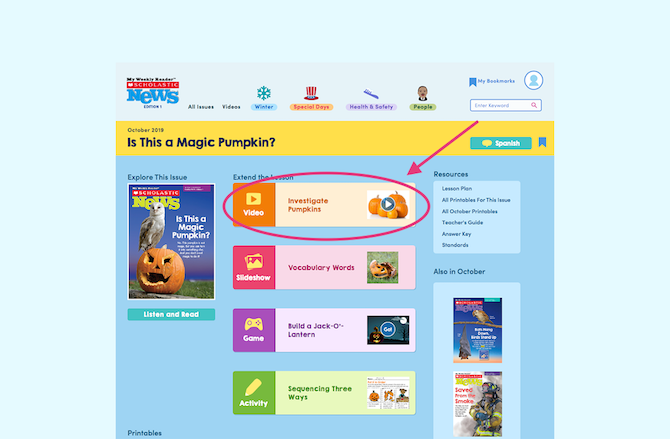
Tip: In the lesson plan for each issue, we usually offer a question to ask kids before watching the video to help focus their attention.
Here is more information about using our videos.
2. Now you can introduce vocabulary words that will be in the issue. Kids can hear the words and definitions read aloud and also see photos of them. That helps kids tackle reading the issue with confidence, and, of course, helps them build vocabulary.
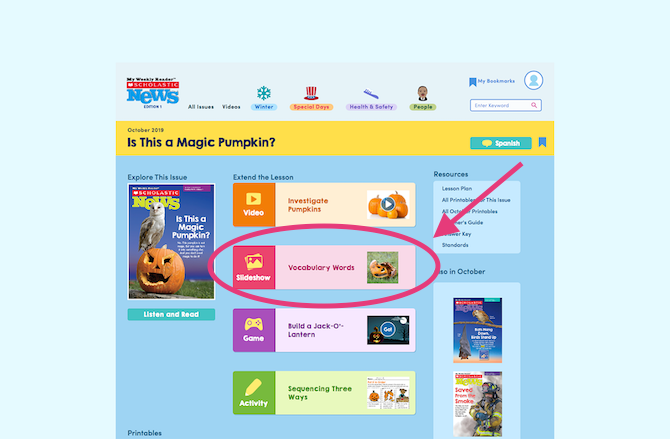
Here is more information about using our vocabulary slideshows.
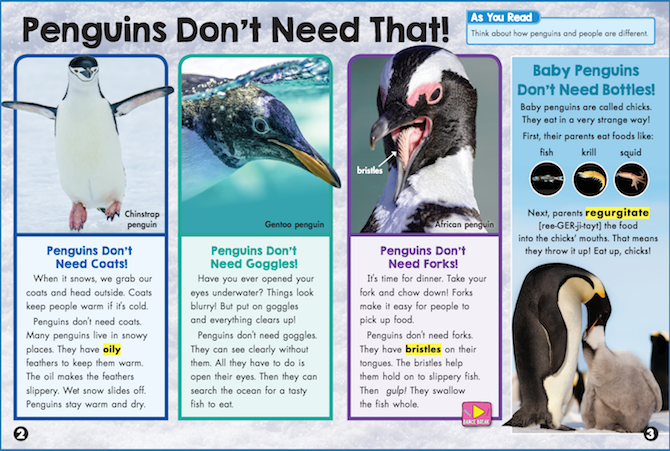
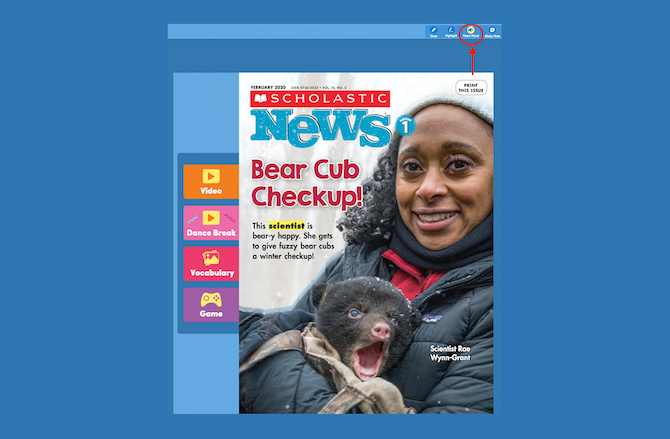
3. Next, open the digital issue on your Smartboard. Don’t have a Smartboard? No problem! Many teachers pull up the issue on their laptops or classroom computer and connect it to their projector.
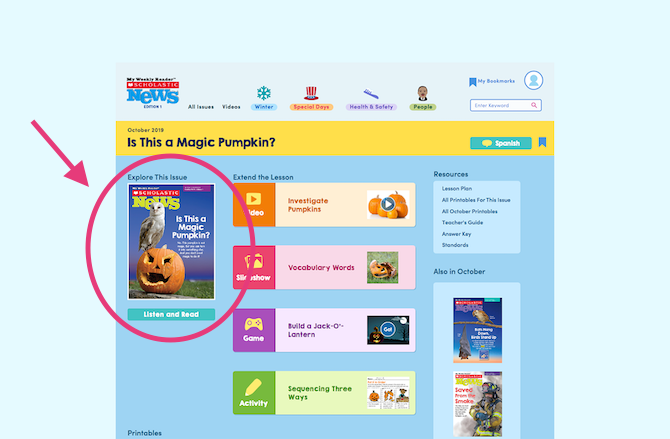
Here are a few options for how to read the issue together:
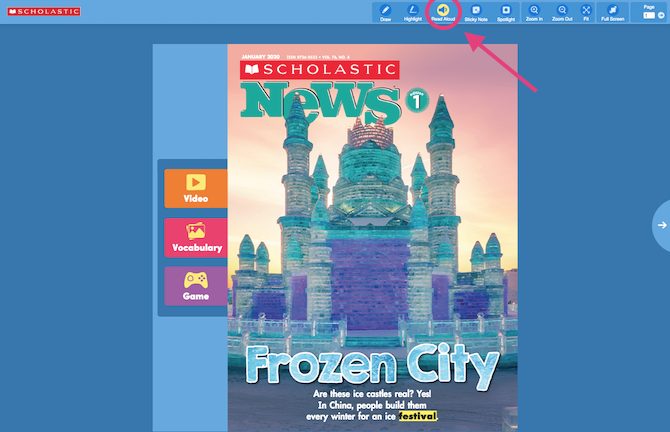
- You can play the text-to-audio feature to hear the issue read aloud. We have regular and slow speeds. Each word is highlighted as the issue is read. This is a great way to model fluency (and give you a moment to catch your breath!).
- You can call on different students to read each section. Kids can either come up to the Smartboard or projector screen to read, or they can read from paper magazines on their laps. We write the magazine in chunks, so it’s easy to call on different kids to read aloud. You’ll also notice that we use color borders for the various boxes of text, so it’s easy to say, “Please read the blue box,” etc
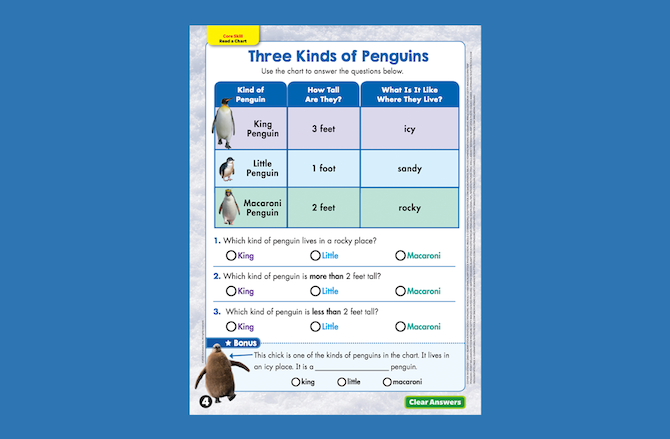
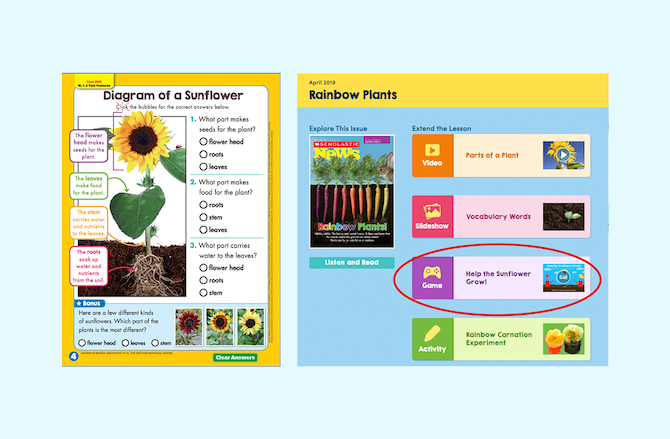
4. Now everyone can do the interactive page 4 activity as a class. You can ask the class the questions and have different volunteers come up to click the correct answers. Kids love the little ding and buzz sounds for the correct and incorrect answers.
5. Another option is to save the page 4 activity for table work, and play the online skills game as a class. These games often focus on reading comprehension, sight words, and grammar skills such as capitalization and end punctuation.
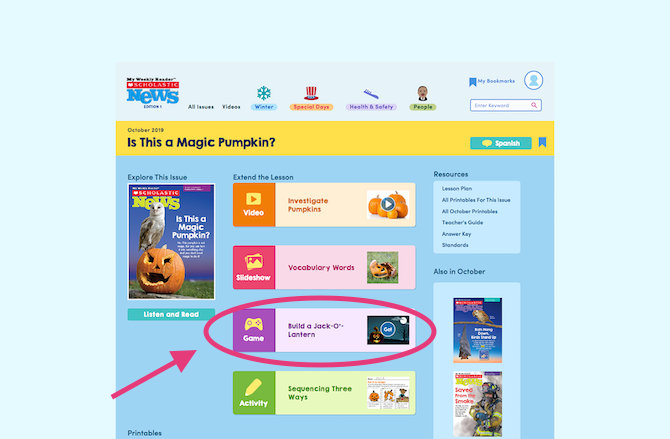
Here is more information about using our games.
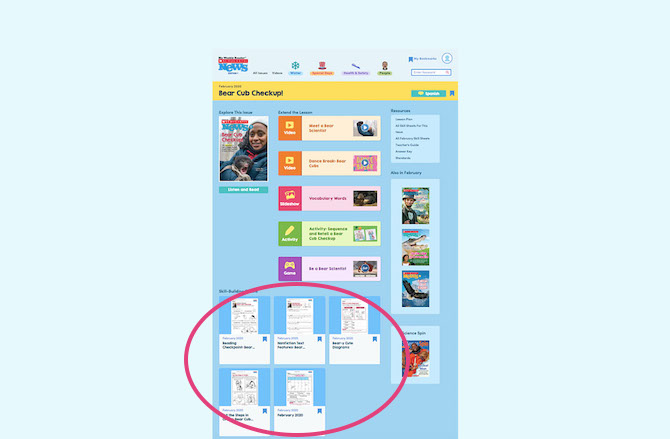
Want to do another whole-class learning activity? Project a skill-building printable and do it together.
How do I use the website for small-group instruction?
How do I use the website for small-group instruction?
You might choose to work with just a small number of students on one issue of Scholastic News. This is a great activity for reading groups and/or leveled instruction. Here is how you can do it.
1. Each student has his or her own copy of the print magazine. First, show the video for the issue on the class computer or laptop.
2. Then pre-teach vocabulary by clicking the Vocabulary Words button. Kids can hear the words and definitions read aloud as well as see a photo of the word.
3. Now you can call on different students to read different sections of their paper article aloud. Or work with everyone at once for a group that needs extra help.
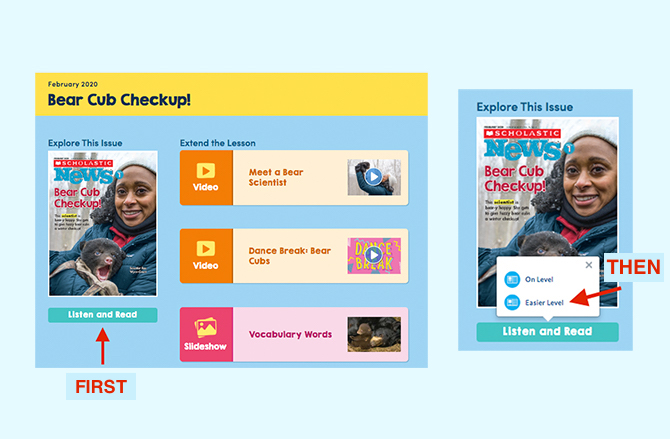
NOTE: We do have lower-Lexile versions of every article available online starting in February of each year.
4. Finally, do the back-page interactive activity together, or play the online game, or both!
Can I use the website during center time or choice time?
Can I use the website during center time or choice time?
Yes! Many teachers set up a laptop with the Scholastic News website on it for center time or choice time.
- You can set it up to a specific issue page if you want the students to watch the video, read the issue, and play the game about a specific topic.
- Or you can set the website up to the video or issue archive. Then the students can choose what videos to watch and what issues to read based on their interests.
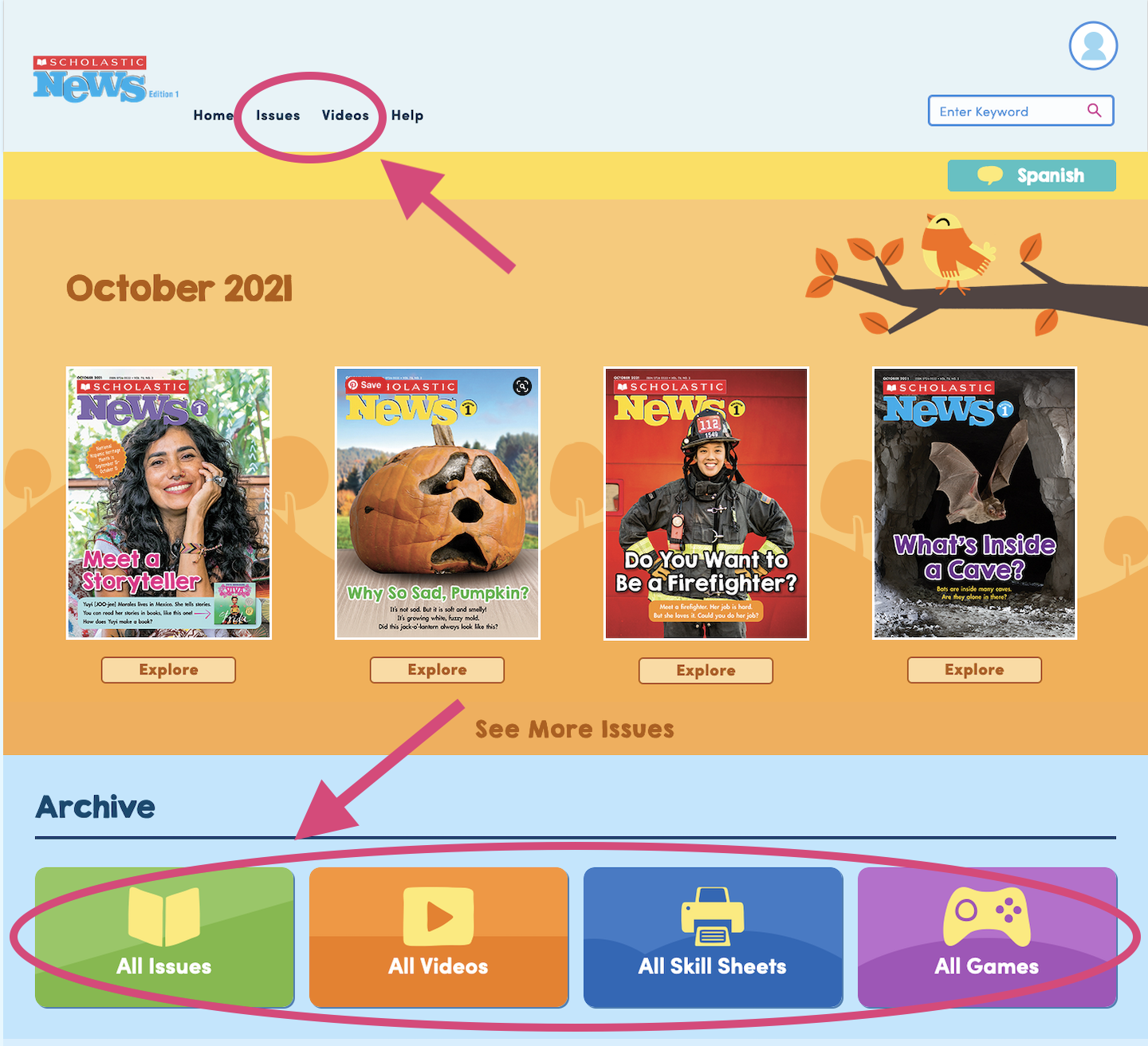
There are two ways to get to the Archive. You can click All Issues or Videos at the top of the website to get to the archive. You can also click All Issues and All Videos under “Archive” to get there.
Can I use the magazine and website for independent reading?
Can I use the magazine and website for independent reading?
Of course! Here are a few ways to do it.
1. Class Password Option
One great way to use the issues for independent reading is to utilize our class password option. You can use it to assign a specific issue for a student to read either on his or her own or on a computer in class. Click here for information about using the class password.
2. Differentiated Instruction for Independent Reading
• Lower-Lexile Versions: We offer lower-Lexile versions of every article available online starting in February of each year. You can choose to use that version as part of one-on-one instruction with struggling readers. They get the same information their classmates get with the regular version of the issue but at an easier reading level.
We also offer text-to-speech audio, with each word highlighted as you go, for our lower-level Lexile issues. What an amazing way to model fluency and help with comprehension!
Can I use the issue archive for independent reading?
Can I use the issue archive for independent reading?
Absolutely! Our issues get more challenging to read as the school year progresses and students become better readers.
Struggling Readers: Using our issue archive to pull up the easier issues from the first half of the year is an amazing option for struggling readers.
Click Archive. Then click September and October in the search bar on the left-hand side to select only those months.
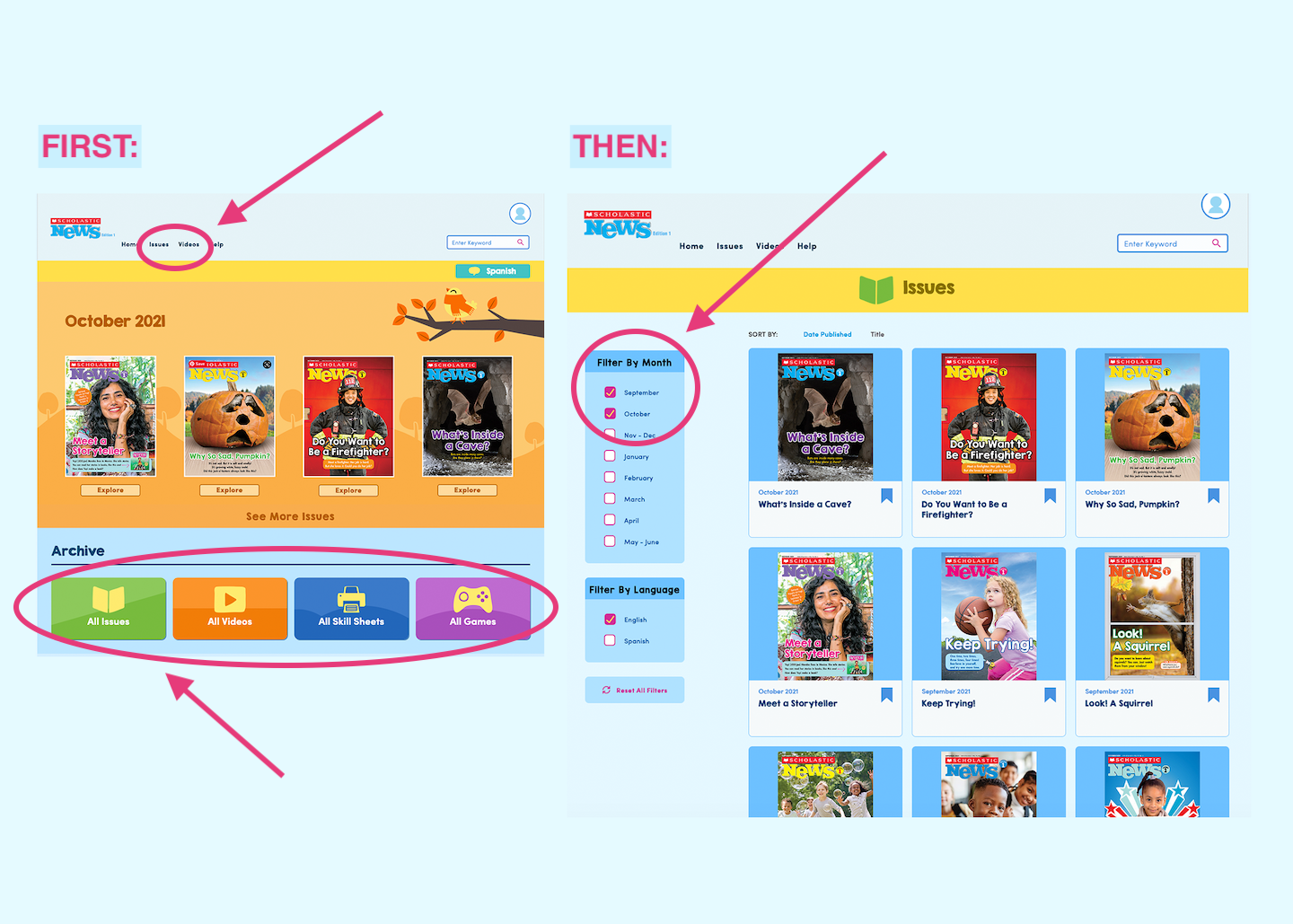
More-Advanced Readers: You can also select the spring issues for more-advanced readers.

What an incredible way to personalize and differentiate instruction for independent reading!